GNOME is highly regarded in the Linux ecosystem for its stability, modular extensions framework, and polished desktop services. However, power users and developers often prefer the hands-on-keyboard efficiency of tiling window managers. Traditionally, this required switching to a custom window manager like BSPWM or i3.
Fortunately, by leveraging the GNOME Shell extension ecosystem and System76’s Pop Shell auto-tiling compiler, it is possible to transform Ubuntu’s standard GNOME desktop into an ultra-productive, keyboard-driven tiling workstation—retaining the convenience of desktop environment system daemons while achieving window manager efficiency.
This guide provides a detailed walkthrough for building a sleek, auto-tiling workspace on Ubuntu, centered around the professional Nordic color palette and customized command-line utilities.
Core System Architecture & Visual Palette
To build a unified, high-performance workstation, we replace standard window interactions with automatic tiling scripts and apply a consistent, high-contrast dark GTK theme. The core specifications of the environment are structured below:
| Component | Software / Project | Technical Purpose & Role |
|---|---|---|
| Operating System | Ubuntu | Stable Debian-based Linux distribution |
| Desktop Environment | GNOME | Core desktop manager and display compositor |
| Window Tiling Engine | Pop Shell | Keyboard-driven auto-tiling extension |
| Aesthetics / GTK Theme | Nordic | Deep arctic blue palette for application frames |
| Icon Set | Flatery Dark | High-contrast, minimalist flat icon vectors |
| Cursor Pointer | Oreo Blue | Customized circular modern cursor pointer |
| Default Browser | Firefox | High-performance, privacy-focused web browser |
Step-by-Step Installation & Workspace Tweaks
To ensure absolute system stability, we recommend starting from a clean installation of Ubuntu (such as the Minimal installation flavor to reduce initial package bloat).
1. Repository Synchronization and Upgrades
First, synchronize your package indexes and upgrade core system components:
sudo apt update
sudo apt upgrade -y
2. GNOME Extensions & Tweak Suite Setup
To manage themes and custom panel extensions, we install the GNOME extensions package manager and the Tweaks utility:
sudo apt install -y gnome-tweaks gnome-shell-extensionsInstalling Essential GNOME Shell Extensions
Open Firefox, navigate to the GNOME Extensions Portal, download the browser connector plugin, and install the following three extensions by toggling their sliders to On:
- Dash to Panel: Combines the top bar and system dock into a single, cohesive taskbar, saving valuable screen real estate.
- User Themes: Enables loading custom GTK shell themes directly from user folders.
- Transparent Window Moving: Adds subtle opacity adjustments when moving floating window layers, improving spatial visibility.
Tip: Open the Gnome Tweaks application, navigate to the “Extensions” tab, verify the extensions are active, and turn off legacy Desktop Icons. Set the Transparent Window Moving opacity value to 0.2 in its configurations for an optimal visual balance.
3. Integrating the Pop Shell Auto-Tiler
System76’s Pop Shell extension provides advanced tiling features (such as binary-tree auto-tiling, gap configurations, and keyboard window focus swaps) directly on top of GNOME.
Install compilation dependencies:
sudo apt install -y git node-typescript makeNavigate to your local Downloads folder, clone the Pop Shell source repository, and compile it:
cd ~/Downloads
git clone https://github.com/pop-os/shell.git
cd shell
make local-install
Once successfully compiled, reload your GNOME Shell (by pressing Alt + F2, typing r, and hitting Enter, or logging out and logging back in). Enable the tiling feature from the new tiling icon in your top status panel.
Compiling & Installing the CLI Productivity Suite
To populate our tiled workspaces with efficient terminal-based applications, compile and install these utilities:
1. Terminal System Information & System Monitors
Install standard system visualization and monitoring programs:
# Visual hardware dashboard (Htop)
sudo apt install -y htop

# Command-line system details fetcher (Neofetch)
sudo apt install -y neofetch

# Terminal file explorer (Ranger)
sudo apt install -y ranger

# Terminal digital clock (Tty-clock)
sudo apt install -y tty-clock

# Retro code visualizer (Cmatrix)
sudo apt install -y cmatrix

# Terminal text processors (Vim and Zathura PDF reader)
sudo apt install -y vim zathura
2. Desktop Music Player (Lollypop)
For managing local media files with a beautiful, lightweight interface:
sudo apt install -y lollypop3. Terminal character-art generation (cbonsai)
Compile the ncurses-based terminal bonsai tree generator:
cd ~/Downloads
sudo apt install -y libncursesw5-dev
git clone https://gitlab.com/jallbrit/cbonsai.git
cd cbonsai
make install PREFIX=~/.local
4. Interactive Terminal Tetris Game (tty-tetris)
Compile a custom, high-performance Tetris game directly for terminal windows:
cd ~/Downloads
sudo apt install -y cmake
git clone https://github.com/Holixus/tty-tetris-v2.git
cd tty-tetris-v2
cmake .
make
sudo make install
5. Compiling CAVA (Console Acoustic Visualizer for Alsa)
Compile the CAVA audio visualizer to monitor sound output with deep contrast bars:
# Install compilation headers
sudo apt install -y libfftw3-dev libasound2-dev libncursesw5-dev libpulse-dev libtool automake libiniparser-dev

# Export header flag
export CPPFLAGS=-I/usr/include/iniparser

# Clone and compile CAVA source
cd ~/Downloads
git clone https://github.com/karlstav/cava.git
cd cava
./autogen.sh
./configure
make
sudo make install
6. Terminal Typing Speed Auditor (Ttyper)
Install the Rust-based terminal speed typing monitor:
sudo apt install -y cargo
cargo install ttyper
Grub Bootloader & Themes Overhaul
A premium visual setup begins before the operating system even boots. We install a custom bootloader screen and deploy the Nordic color palette across all desktop application shells.
1. Bootloader Visual Upgrade
Clone the Sekiro GRUB bootloader theme repository and run the automated installation script:
cd ~/Downloads
git clone https://github.com/semimqmo/sekiro_grub_theme.git
cd sekiro_grub_theme
sudo ./install.sh
2. Deploying Nordic Visual Assets
To customize window borders and icon vectors, create two hidden directories in your local home directory:
cd ~/
mkdir -p .themes
mkdir -p .icons- GTK Themes: Download the Nordic GTK theme and extract its folder directly into your new
~/.themesdirectory. - Icon Sets: Extract the Flatery Dark icon theme directly into
~/.icons. - Cursor Pointer: Extract the Oreo Blue cursor directly into
~/.icons.
Open GNOME Tweaks, navigate to the Appearance tab, and select Nordic for applications/shell themes, Flatery Dark for icons, and Oreo Blue for cursors.
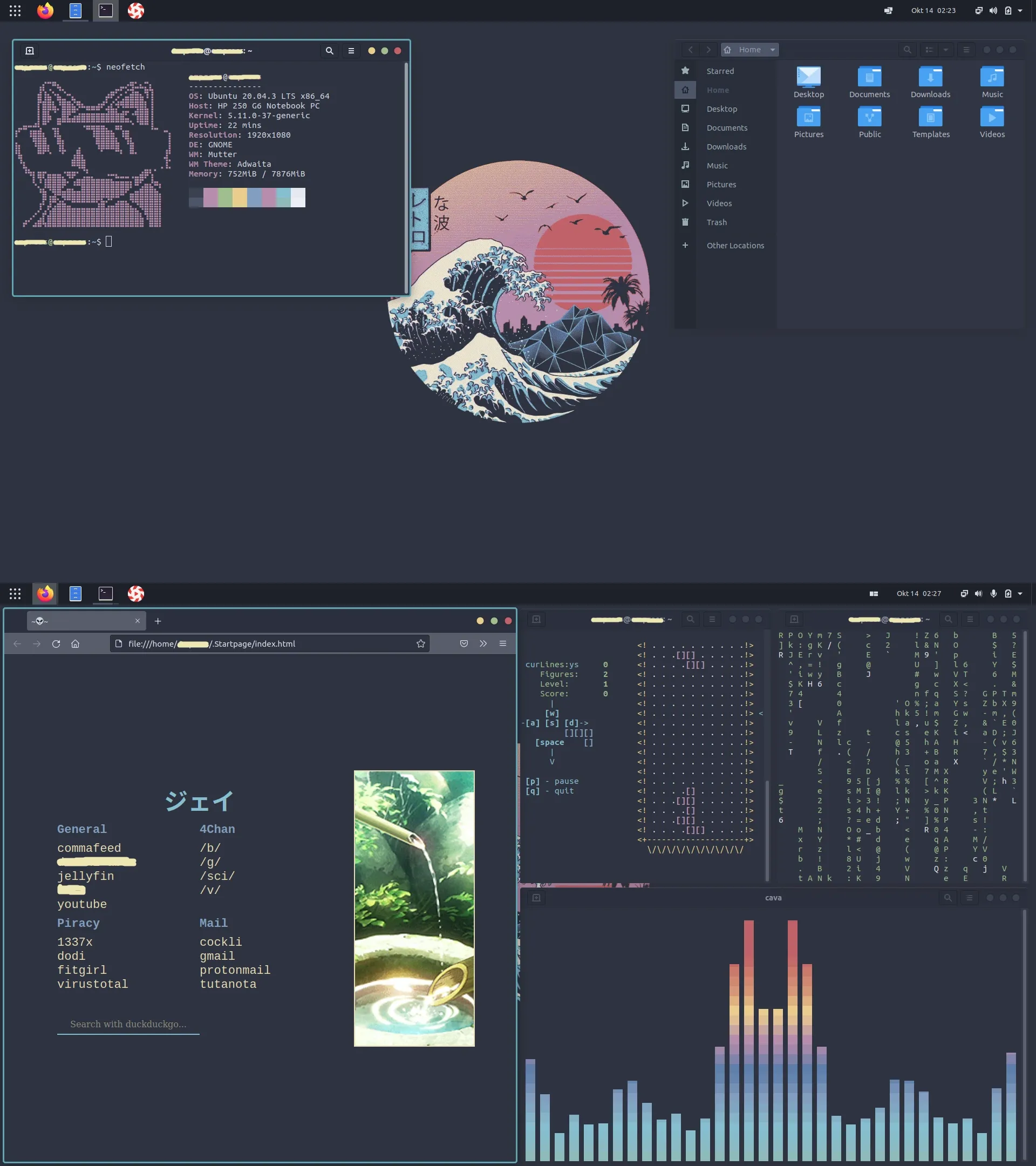
Workspace Layout & System Customization Showcase
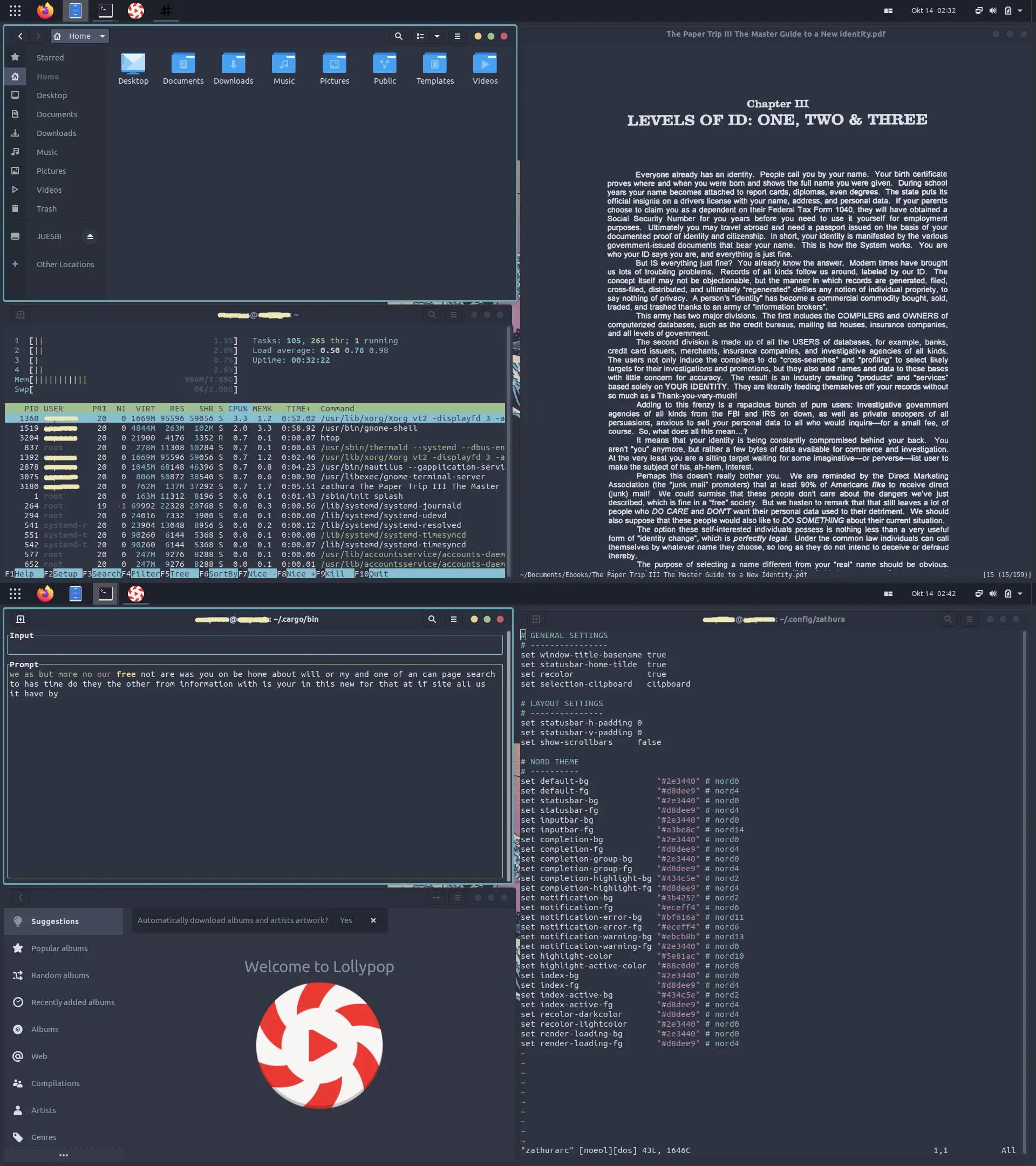
Once the auto-tiler is enabled and the themes are deployed, your workspace arranges application screens with clean, geometric gaps and high visual contrast.
System Layout & Terminal Workspace
The terminal workspace utilizes standard layout grids to keep key system metrics and text files visible in real-time, eliminating window overlaps:
Minimalist Home Page & Music Workspace
The home screen showcases customized desktop wallpapers, dynamic music audio visualizers (CAVA), a minimalist Firefox start page, and local terminal-based Python utilities:
Technical Glossary: The Custom Workstation Lexicon
| Tool | Technical Overview | Visual & Operational Benefit |
|---|---|---|
| Pop Shell | Window manager manager wrapper | Translates raw application launches into clean binary-tree partitions. Saves monitor space and reduces mouse dependency. |
| Neofetch | Cryptographic visual info fetcher | Formats core specifications (kernel, shell, system themes) alongside a high-resolution ASCII representation of the OS. |
| Zathura | Vim-like lightweight PDF reader | Renders documents utilizing customizable keyboard shortcuts and minimal memory footprint, with dark mode page-color inversions. |
| Ranger | ncurses python file navigator | Translates folder navigation into a fast terminal grid with multi-column hierarchical directory previews. |
| Vim | Advanced terminal text editor | High-speed terminal-based IDE featuring modal editing shortcuts and deep code customization options. |
| cbonsai | CLI vector animation algorithm | Iteratively prints character trees inside open shells, adding visual flavor to background terminals. |
| tty-tetris | C++ terminal game matrix | High-refresh-rate retro game running inside shell sessions using keyboard mapping. |
| ttyper | Rust-based typing testing utility | Measures speed (WPM) and spelling accuracy of input keys during terminal sessions. |
| Nordic GTK | Harmonized arctic colors theme | Eliminates blinding white UI light, replacing it with elegant, low-strain dark blues and pastel accents. |
| Flatery | High-contrast flat icons library | Aligns launcher and taskbar icon silhouettes for a unified, modern vector aesthetic. |
| Oreo Blue | Vector-scaled circular pointer | Replaces the traditional arrow pointer with a modern, high-visibility circular target. |
| Firefox | Memory-safe custom web browser | Highly customizable browser configured with custom CSS start pages (userChrome.css) for minimalism. |
| tty-clock | Terminal time signal module | Projects system times utilizing large terminal block character layouts. |
| CAVA | Bar-spectrum audio visualizer | Translates real-time desktop sound frequencies into responsive visual bars. |
| HTop | Active systems manager dashboard | Advanced task manager showcasing real-time CPU/memory core usage, load averages, and active processes. |
| CMatrix | Volatile text scrolling engine | Renders green falling character animations matching the aesthetic of classic scifi computers. |
| Lollypop | Modern music playback catalog | Parses audio metadata and covers, presenting an aesthetic desktop music player interface. |
Conclusion & Customization Retrospective
Customizing a monolithic desktop environment like GNOME shows that you don’t need to sacrifice modern system services or device stability to enjoy the efficiency of a keyboard-driven window manager. Integrating System76’s auto-tiling scripts with standard Ubuntu packages results in a responsive, low-latency, and beautiful development platform.
This desktop environment walkthrough is intended for educational and reference purposes, showcasing the deep customization potential of open-source desktop systems and keyboard-driven terminal workflows.